


 73
73
Wiley X VPN procedure:
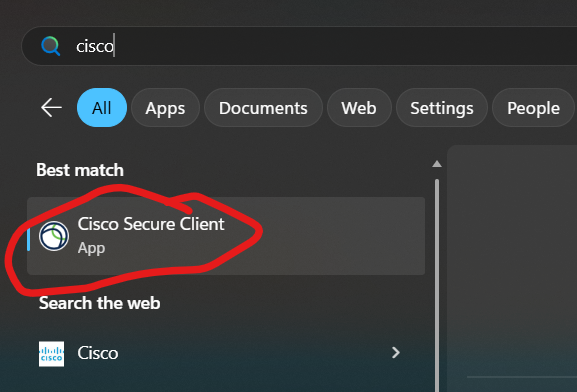
In order to log into our secure Wiley X/Cisco VPN you need to load the app from the start menu.
1) Click the start menu button/Windows Logo.

2) Search for "cisco" at the top of the start menu and choose Cisco Secure Client.
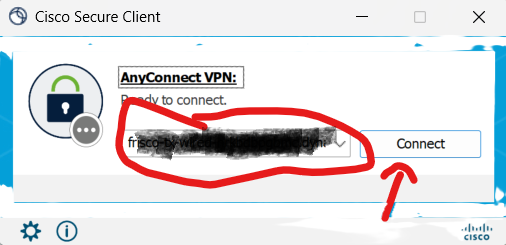
3) When the Cisco Secure Client loads, it can take a bit, click "connect". If it doesn't work, it's most likley because the address string isn't in the field as circled. If that's the case please put in a ticket at the Wiley X Helpdesk and we'll remote to your machine and add the field.
4) After you click connect our Wiley X authentication page should show up. Please enter your normal Wiley X email and go through the authentication process.
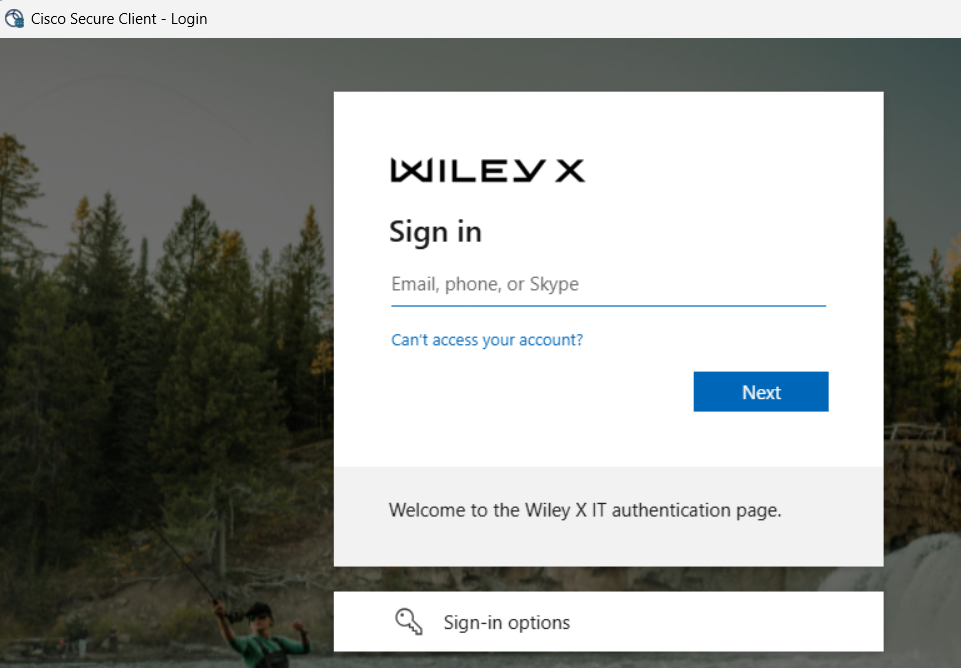
5) The process should complete, you'll need to hit an "accept" button and you're done! All your laptop traffic will now be funneled through the VPN.

